1. Start a deck
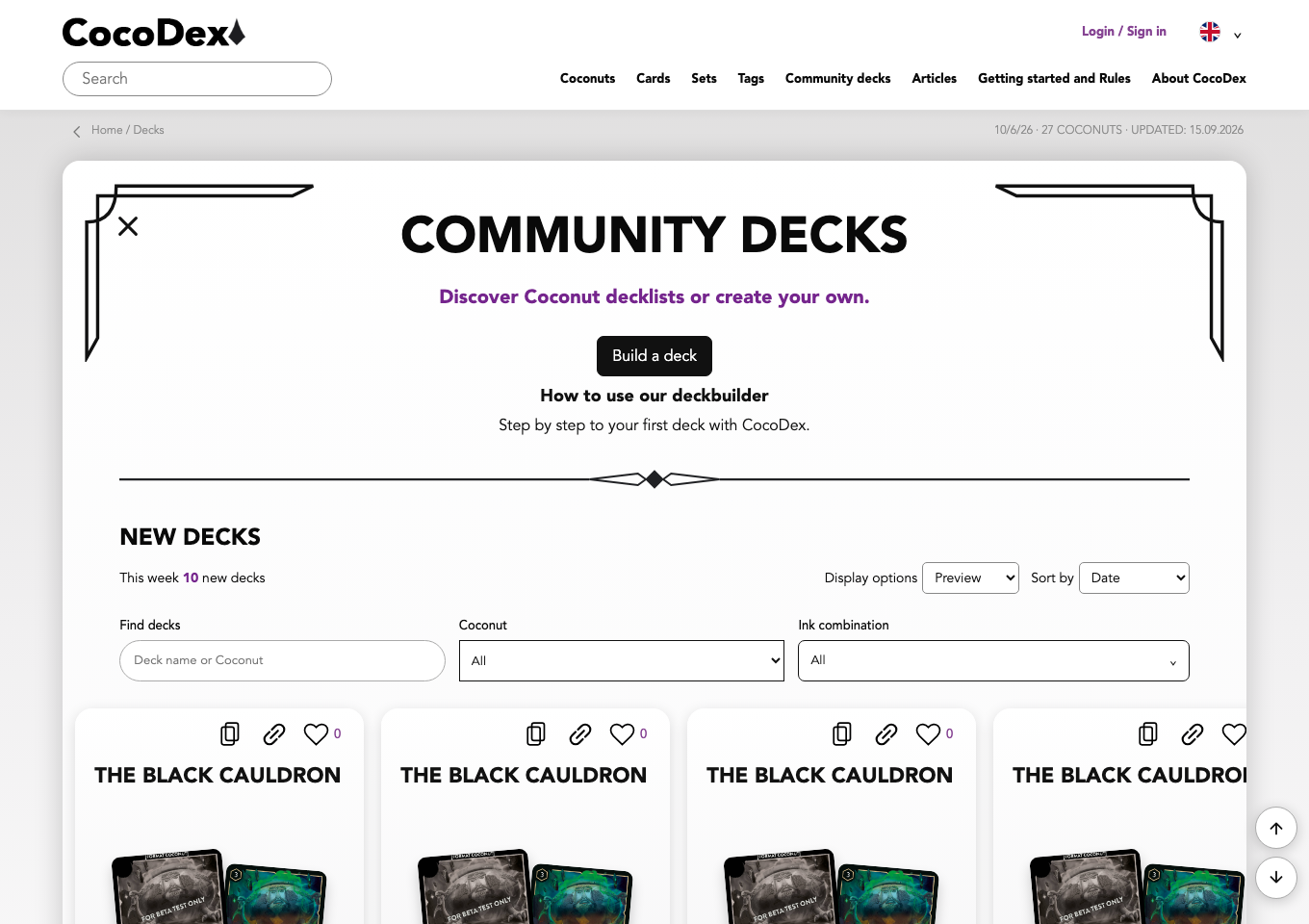
Open Community decks → Build a deck and sign in if necessary. Choose a Coconut. Colour icons on this selection page filter the Coconuts; you choose your deck colours inside the editor.
2. Define your plan
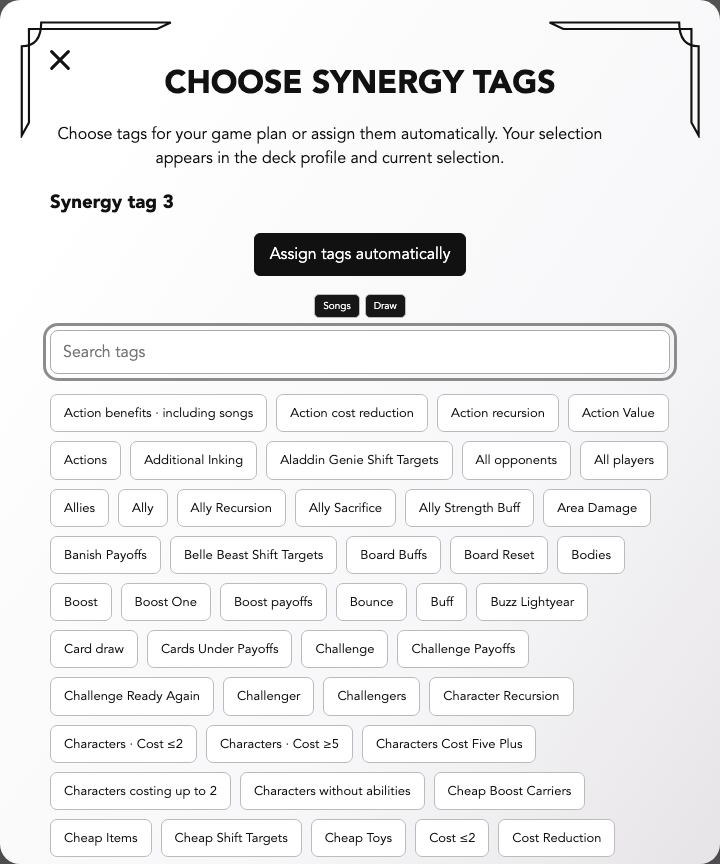
After choosing a Coconut, the tag dialog opens. Search for the roles you want, such as Songs and Draw, select them one by one and finish the dialog. Automatic tag assignment provides a starting point to review.
3. Set a name and colours
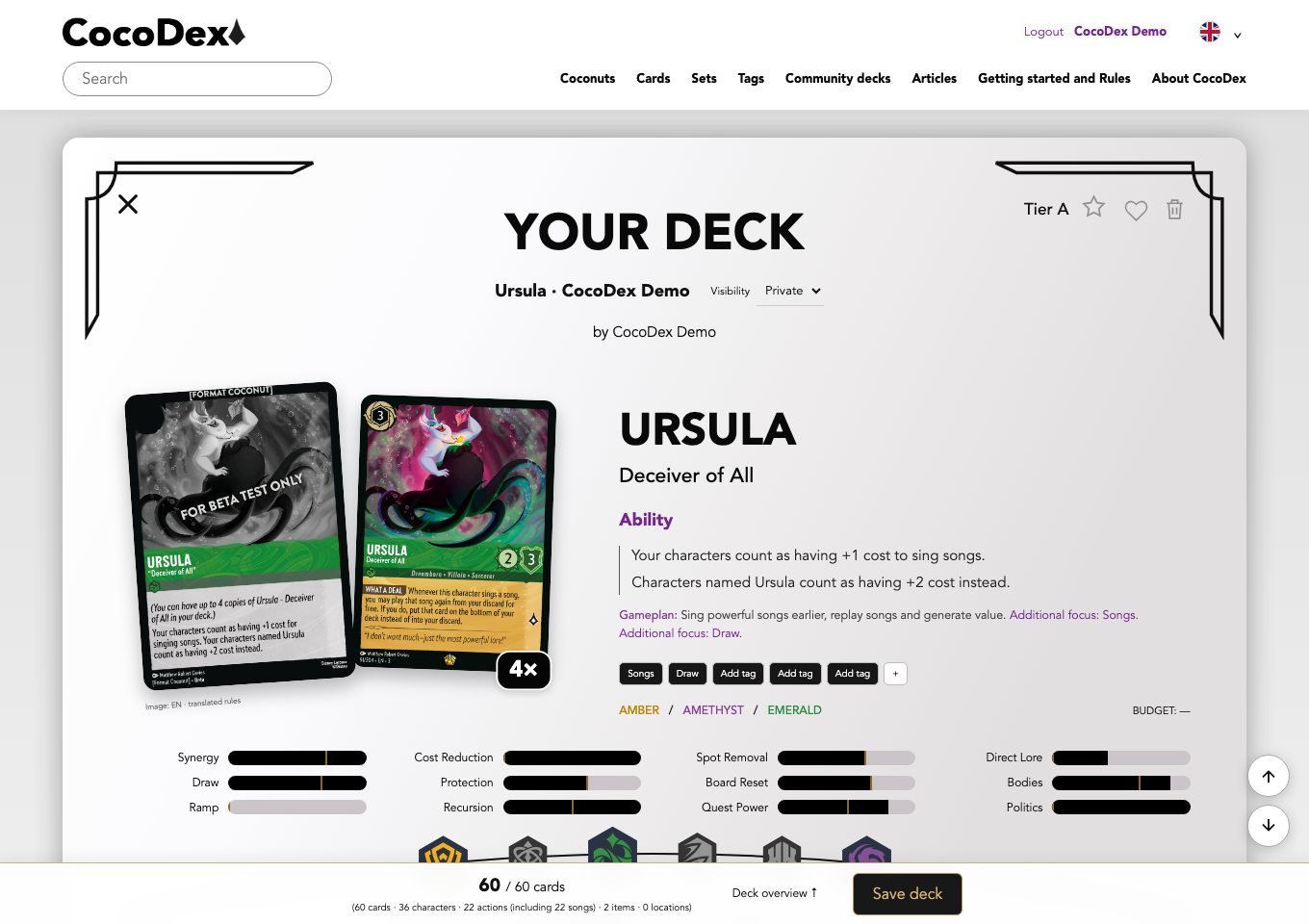
Name your deck and keep it private while building. Use the ink arc to add colours, up to three in total. Required Coconut colours stay selected. A multicolour card needs all its colours. Remove affected cards before removing a colour already used in the deck.
4. Search the available cards
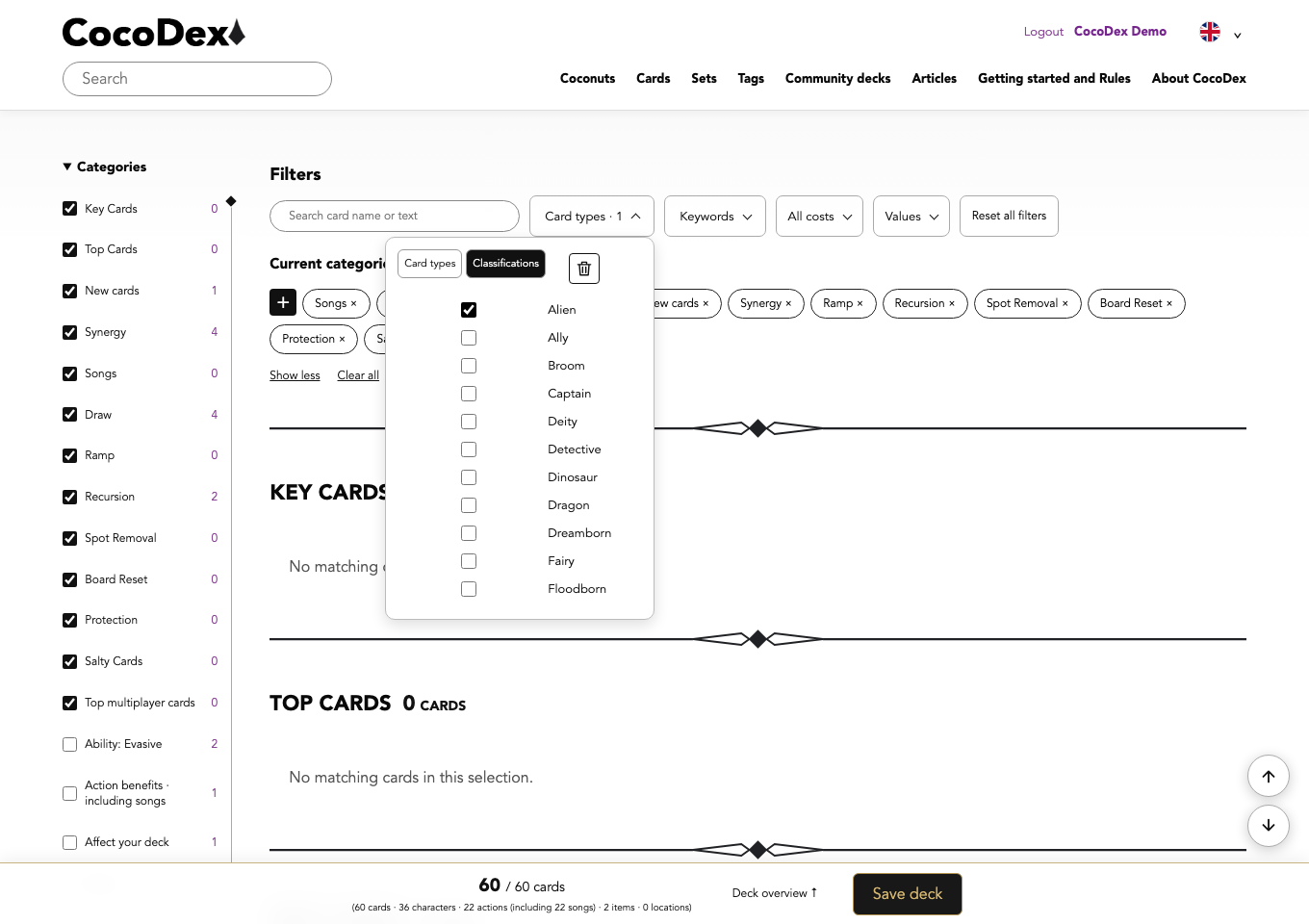
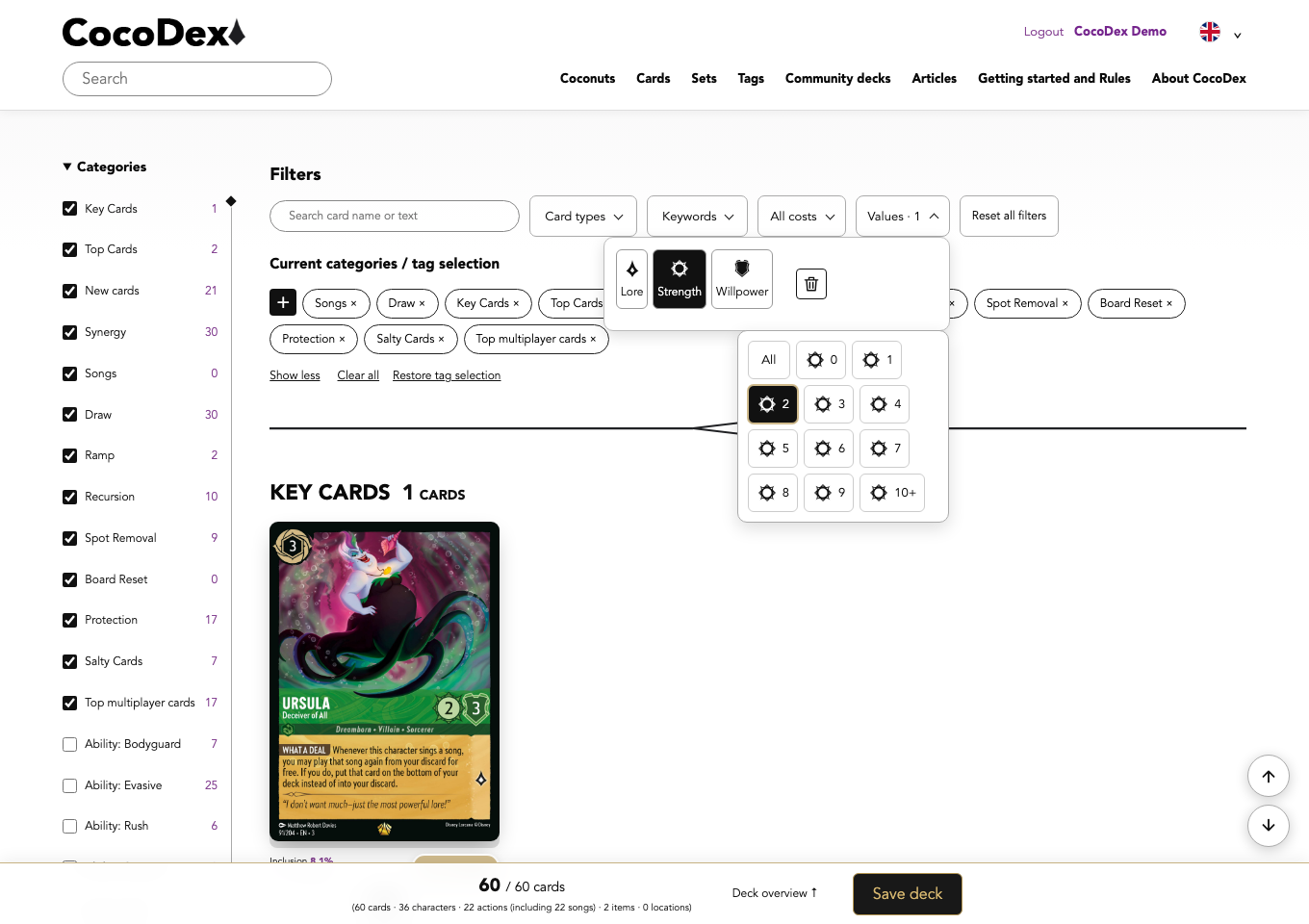
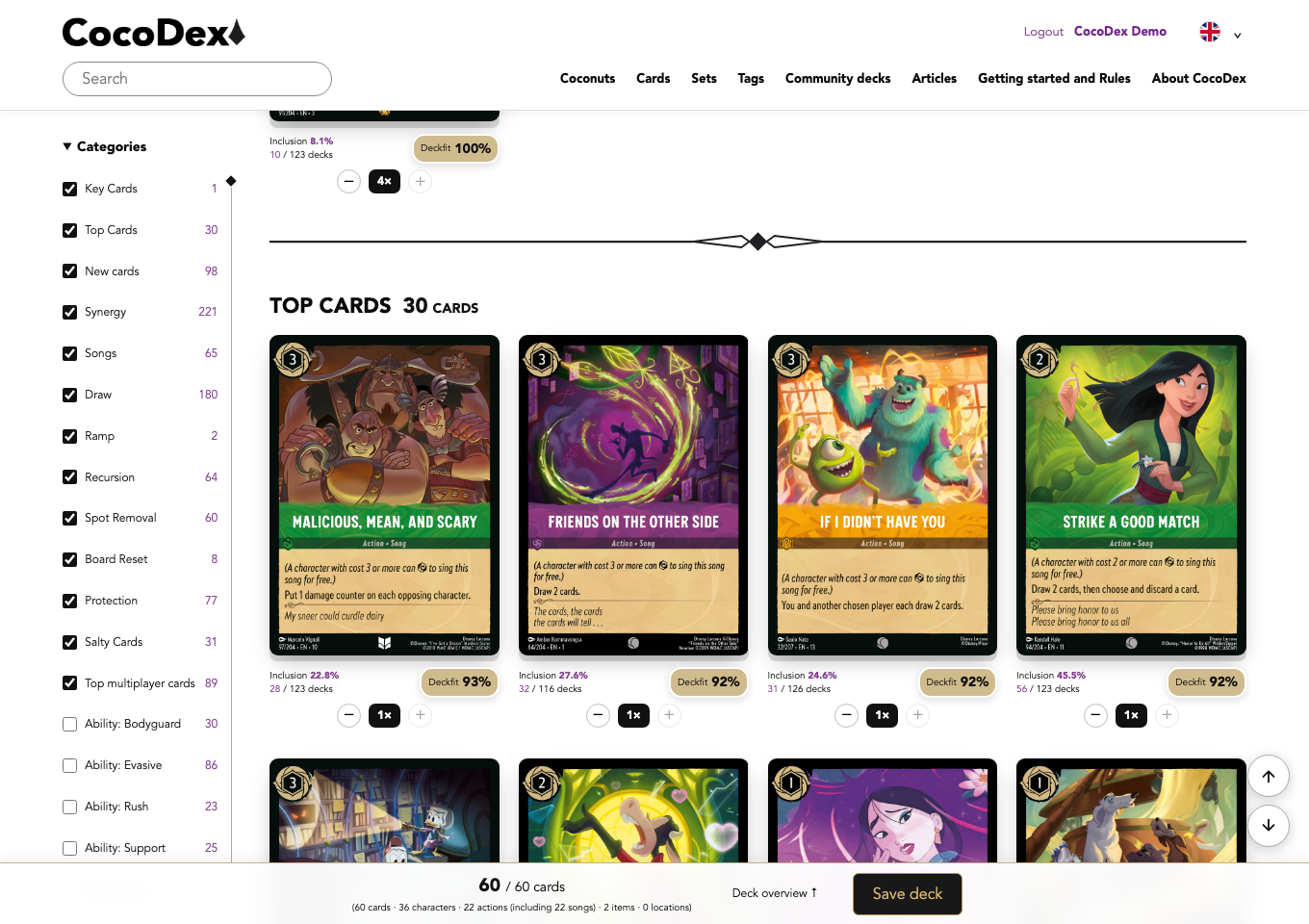
Choose Show all cards to find additions, or Show my deck for cards already included. Import and export sit alongside these controls. Under Filters, combine card-name or card-text search with card types, classifications, keywords and costs. Values offers Lore, Strength and Willpower tabs, each supporting multiple values. The trash icon removes only the selection in that tab. Reset all filters beside Values clears card filters while preserving your categories and deck cards. The set selection limits releases.
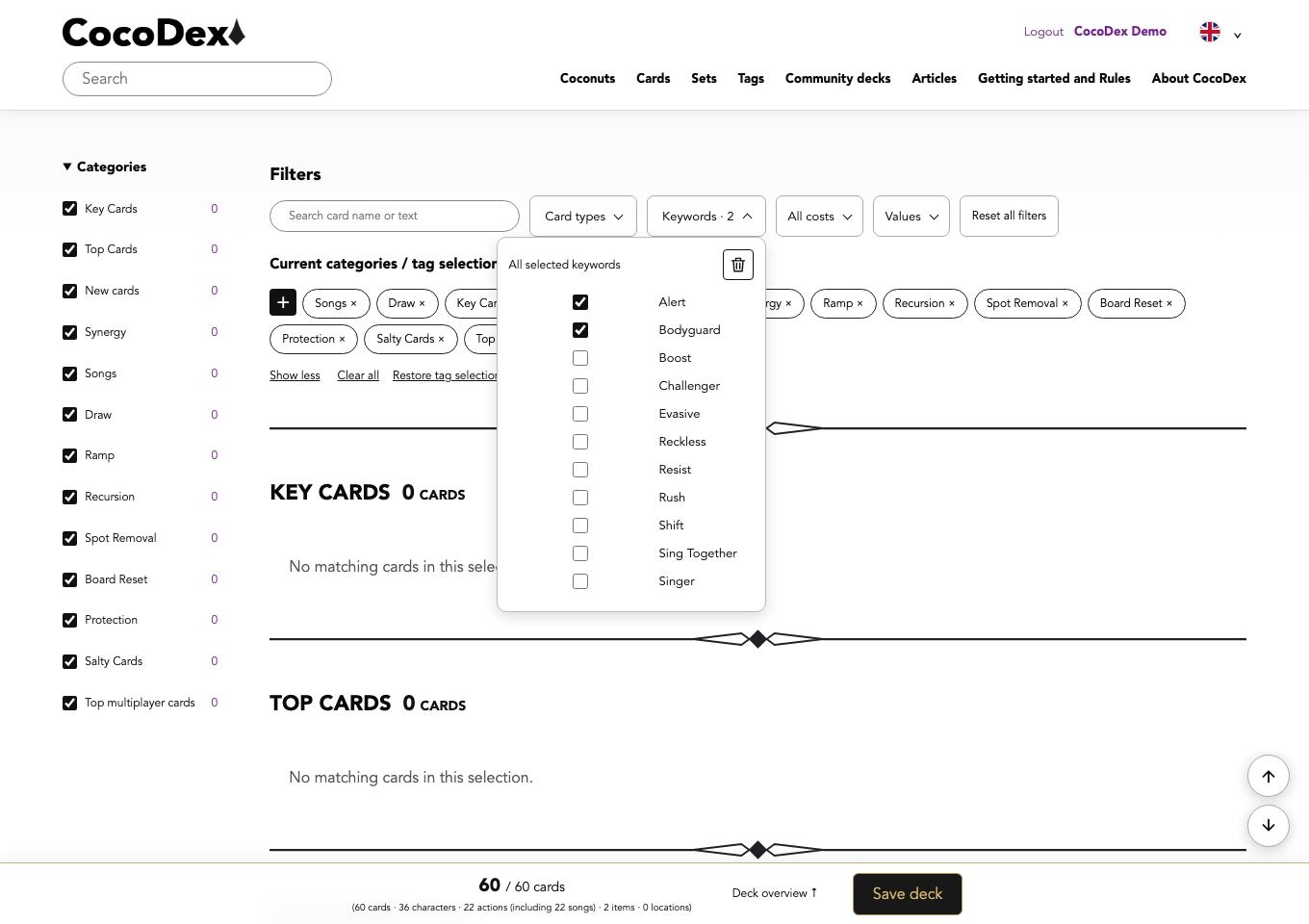
Keywords and classifications now use checkboxes. Multiple selections within each group use AND: Evasive and Resist requires both keywords; Queen and Hero requires both classifications. Small arrows open the menus. The trash icon clears only its own selection area. On narrower screens, card-text search sits above the filter menus.
5. Choose filters for your goal
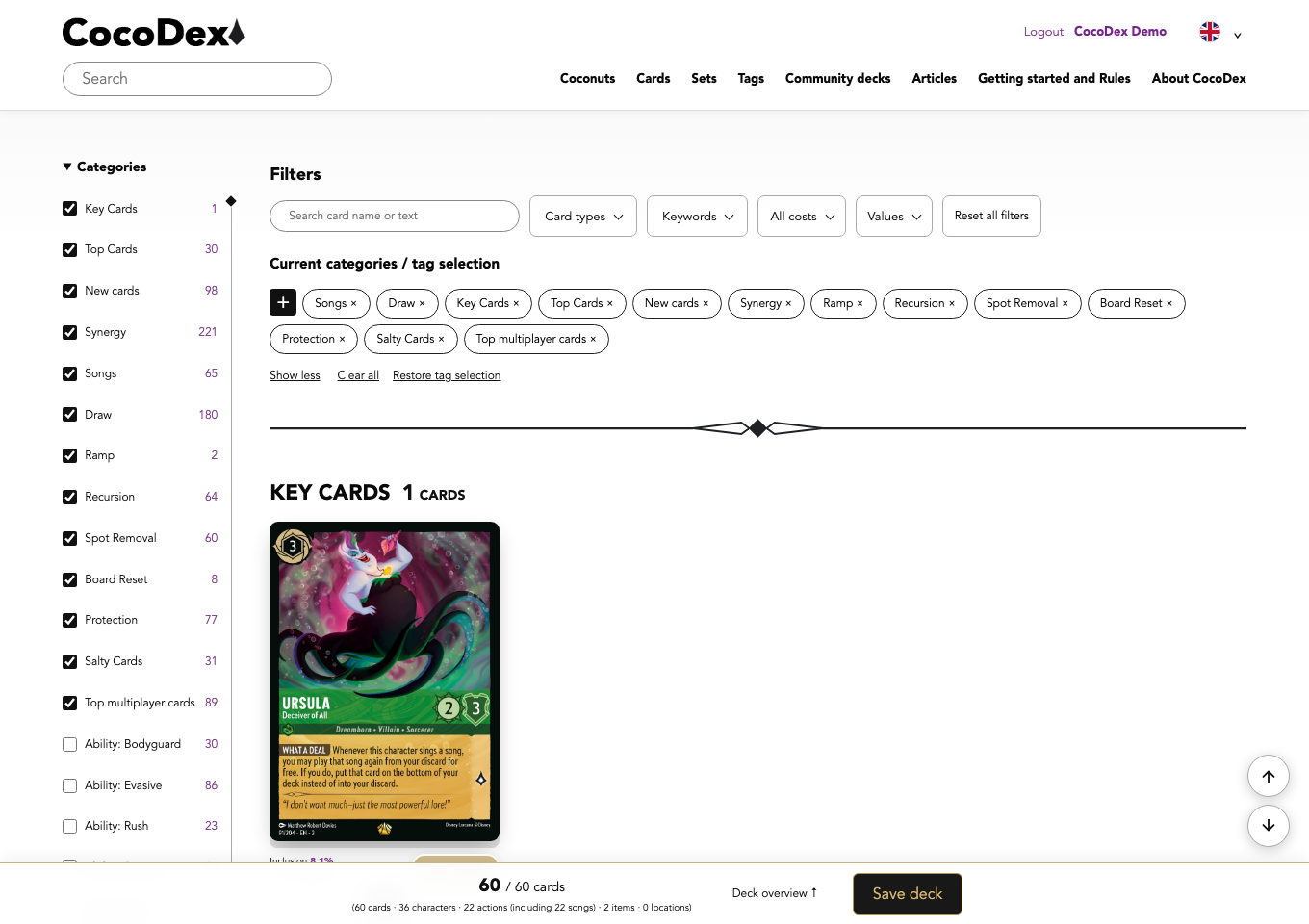
Need card advantage? Select “Draw” and add a cost filter if needed.
Looking for singers? Choose characters and the Singer keyword. Read the card text too: the keyword does not include every character whose cost allows it to sing a song.
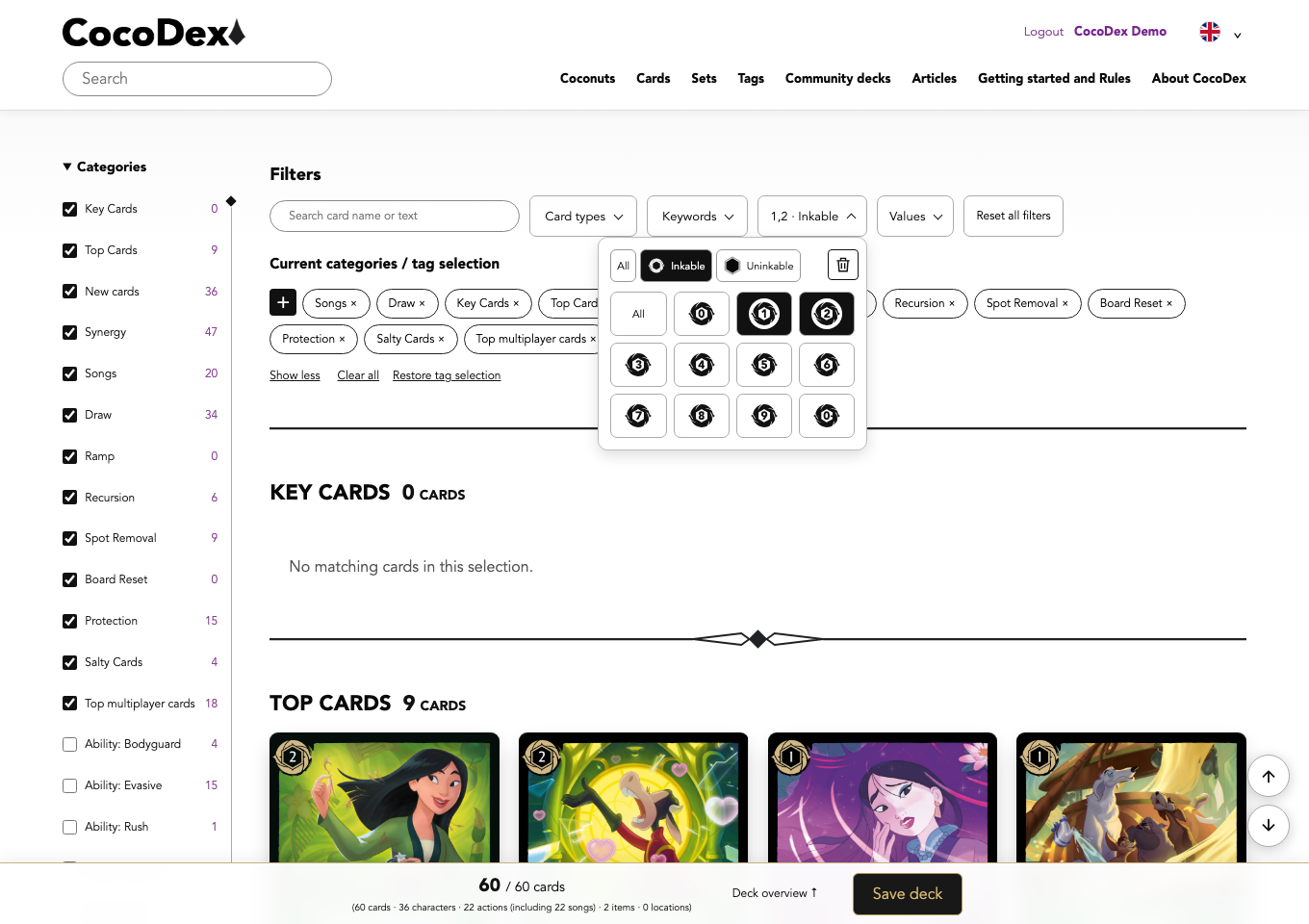
Need early plays? Select costs 1 and 2, then Inkable if required. Clearing the cost numbers preserves the inkability selection.
Need answers? Check “Spot Removal” or “Board Reset” and read the conditions.
No results? Check the card view, deck inks, sets and filters. Selected categories remain visible even without matches. Resetting card filters preserves your categories and deck cards.
6. Keep deck tags and search groups distinct
The Synergy tags in the deck profile describe your game plan. Current categories / tag selection controls the result groups. Use “Show all tags” and “Show less” to expand or collapse the selection. The × removes a category; Clear all empties the current tag selection. Restore tag selection brings back the intended categories. These actions preserve both your deck cards and the card filters above. Multiple categories produce separate result groups; a card need not satisfy every selected function.
On desktop, the black + at the start of the tag row opens tag selection. On mobile the plus is hidden; use the category selection instead.

7. Add cards
Use + and − to adjust quantities. The plus becomes unavailable at the permitted limit. You can include up to four copies of the card linked to your Coconut. Other cards are limited to one copy, unless your Coconut specifies an exception. A card appearing in several groups still has one shared quantity.
“Show more results” includes the visible and total card counts, such as “16 of 30”. Loading more increases the visible count.
8. Import an existing list
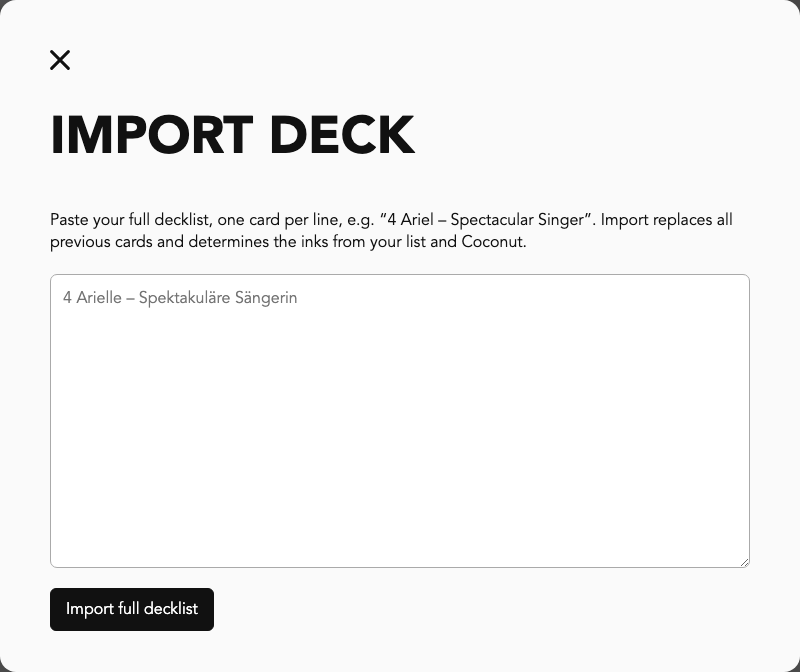
Open the import icon and paste a complete list with a quantity and card name on each line. Import replaces the existing cards and determines colours from the list and Coconut. Review the result. Export downloads a text card list.
9. Review the list and statistics
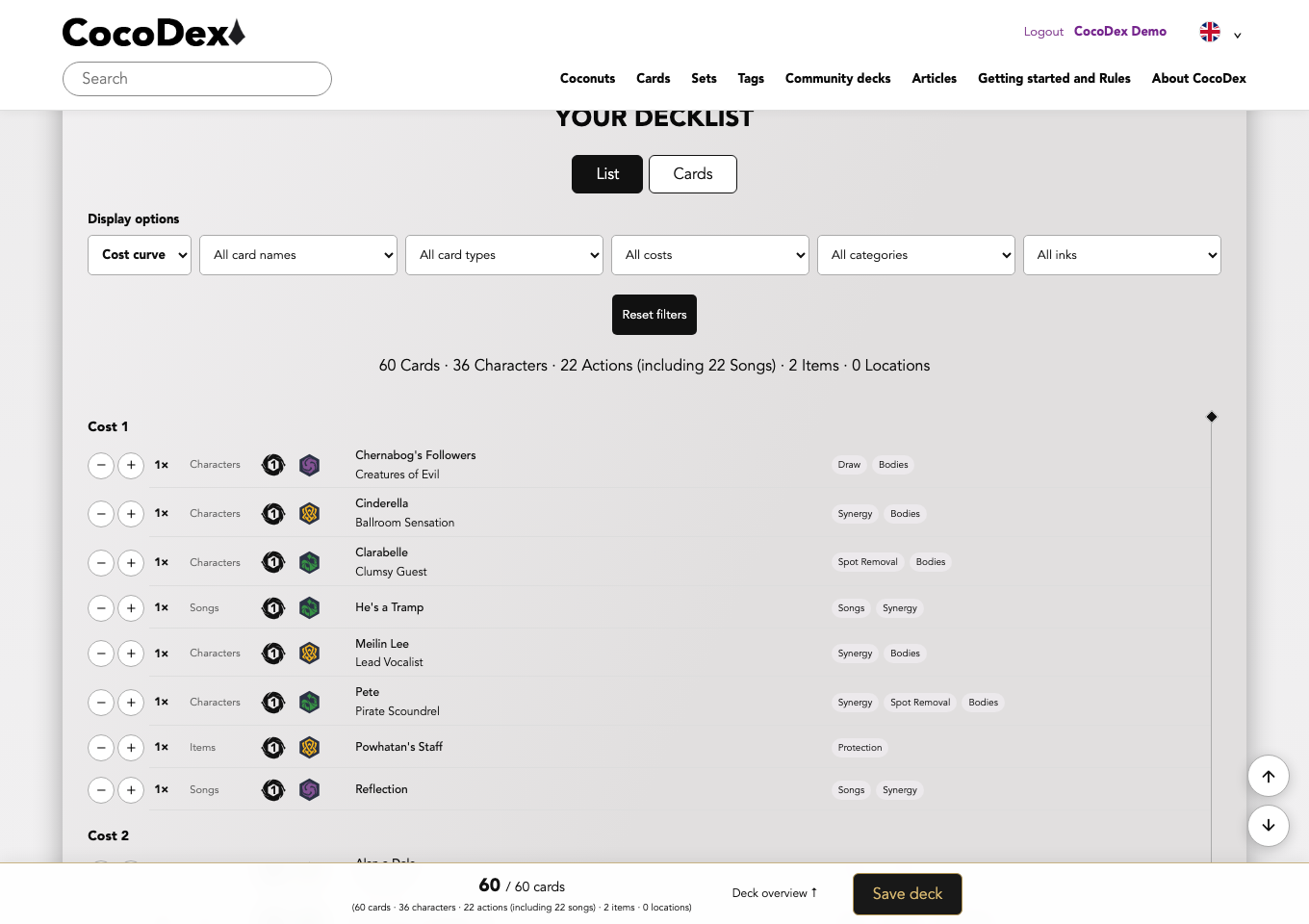
Open Decklist & statistics. The fixed bottom bar takes you to statistics through the card counter and to the list through Deck overview ↑. Switch between list and cards and group your collection. In the card area, Sort deck appears only with Show my deck. Quantity changes affect your deck. The total counts copies; the gallery may show fewer distinct cards.
10. Use template targets
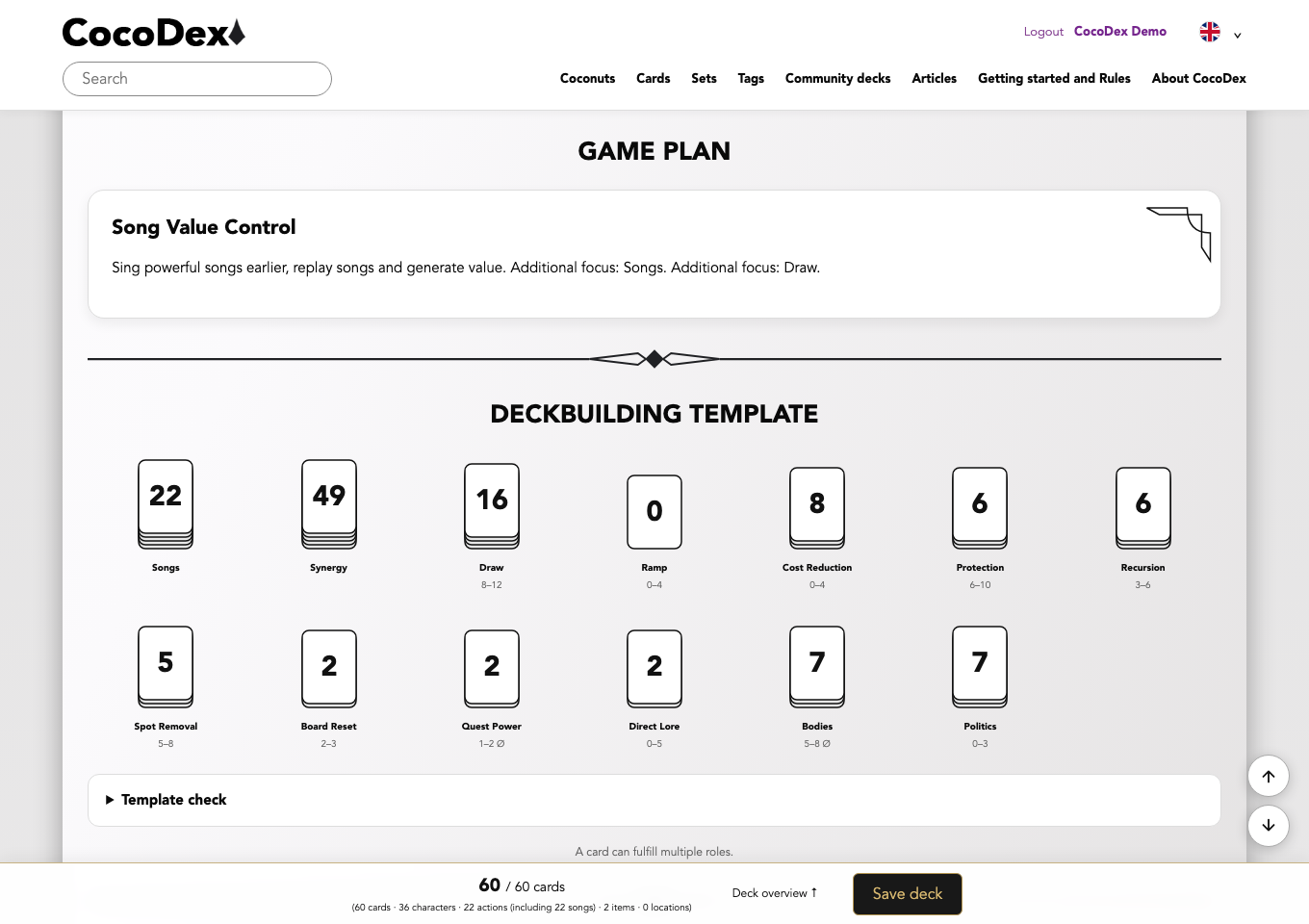
Overall shows inkability, average cost and other measures. The cost curve shows your card distribution. The deckbuilding template compares your cards with target ranges. Check missing functions as well as overloaded areas; targets are not automatic swap recommendations. A card may serve several functions. Profile bars relate to the corresponding template targets. Expand the template check to set personal targets. This changes the targets, not your cards.
11. Try opening hands
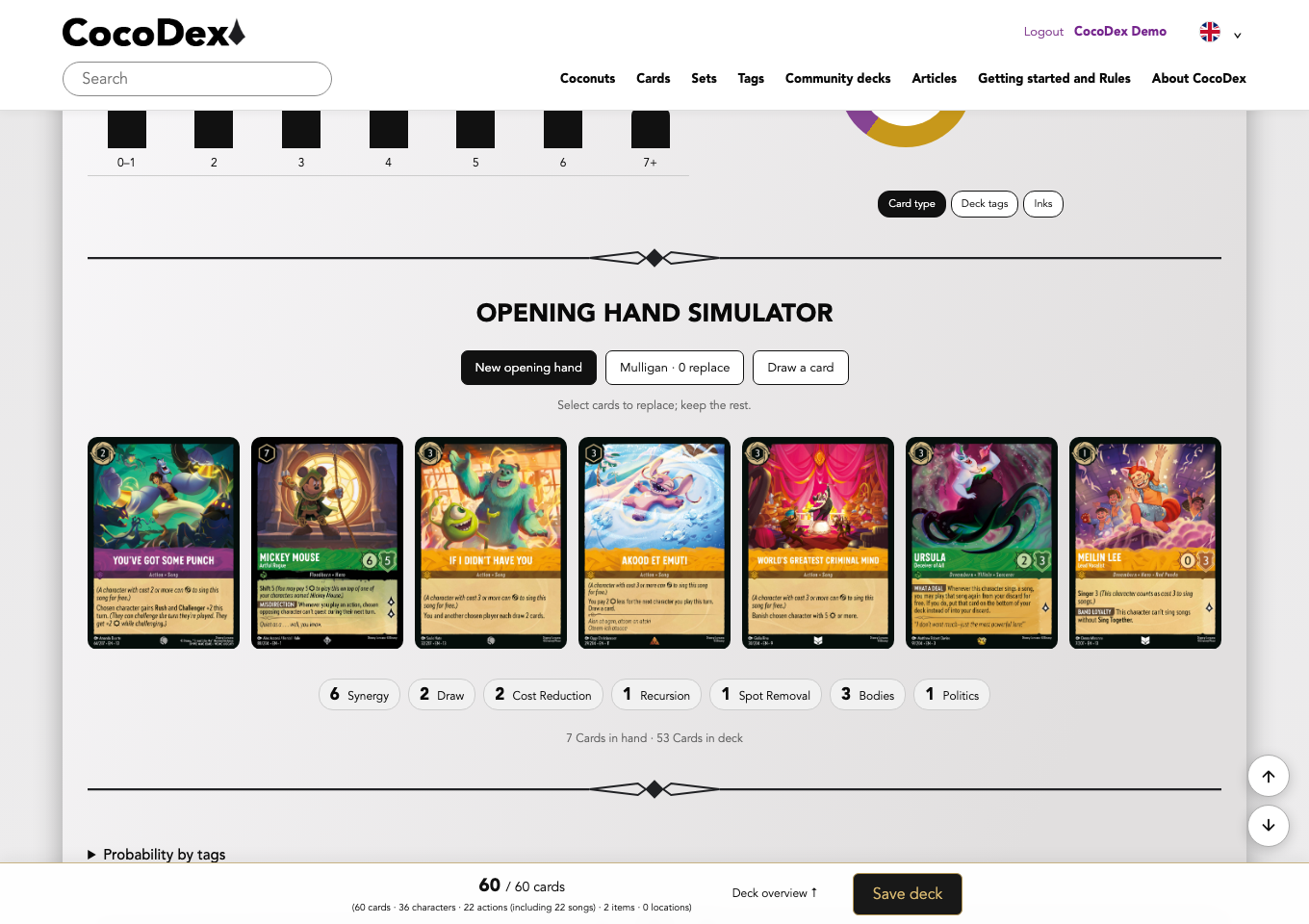
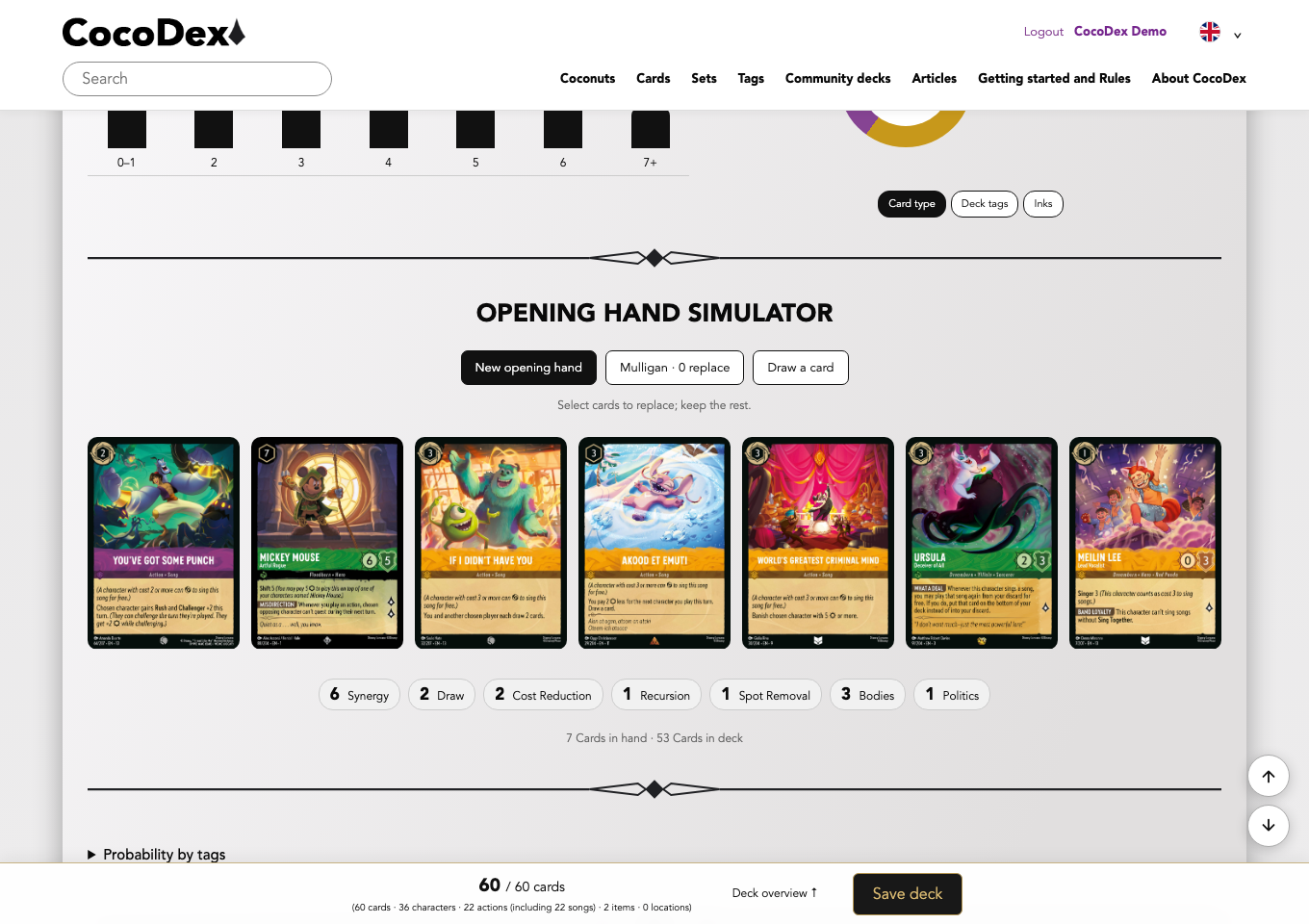
Use New opening hand, select cards to replace and apply the mulligan. Draw a card to explore the next draw. Check early plays and ink sources. Tag probabilities provide another view. This tests hands and draws, not full games against opponents.
12. Save your deck
Click Save deck in the fixed bottom bar and wait for confirmation. Reopen it from your profile. If a save prompt appears on leaving, choose Yes to retain changes. Only change visibility to public when you intend to share. Review your list and current format rules first; template targets are not a full legality check.
Build your deck now
Choose your Coconut and bring your first deck idea to life.
Log in / Register